Back up Asana to Amazon S3 or S3-compatible storage
To keep Asana data in your own bucket, create an S3 bucket, give a dedicated access key permission to write and read objects in it, and enter those details in the photocopi.es dashboard. Each task then lands in your bucket as a PDF, with its attachments next to it, and your bucket settings decide how long it all stays.
This guide is for the person who owns the storage side: an admin, a developer, or whoever looks after your AWS account or other S3-compatible provider. It covers the bucket, the access key, the dashboard fields, what the files look like, and how to set retention. If you are still choosing how to back up Asana at all, start with How to back up Asana or Ways to back up Asana compared.
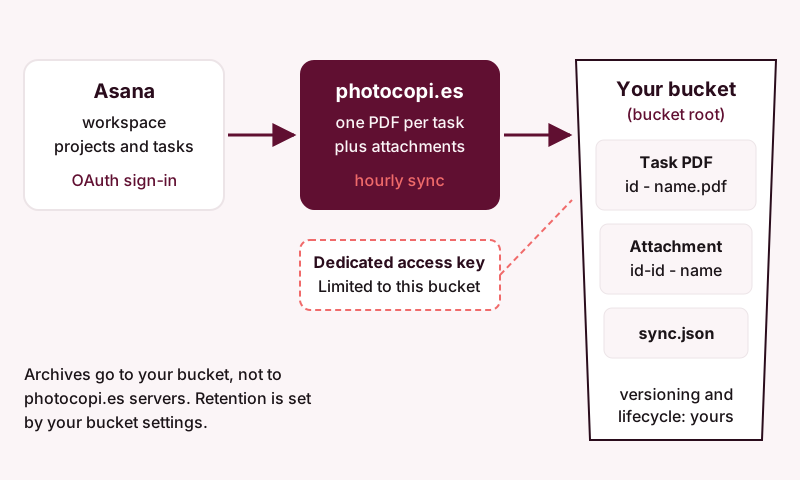
What ends up in your bucket
photocopi.es connects to Asana with "Sign in with Asana" and backs up one workspace that you pick. It exports each task to its own PDF with the title, the rich description, comments and activity, and task details such as assignee, due date, projects, tags and custom fields. You can open an example task PDF to see the result.
Everything is written to the root of your bucket:
<task id> - <task name>.pdffor each task.<task id>-<attachment id> - <attachment name>for each attachment that Asana can download. Attachments without a download URL, such as links to files in external services, are recorded by name only inside the PDF.sync.json, a state file the app uses to keep track of the sync. When you save your bucket settings, photocopi.es also uses it to check that it can list, read and write the bucket. Leave it in place.
Some things are not archived: project lists, board views, calendars, and messages such as conversations and status updates. photocopi.es also cannot restore data back into Asana. The bucket is a readable archive, not a way to rebuild a workspace.
On the Solo and Team plans, the first sync archives everything and then photocopi.es checks for changes every hour. The archives are stored in your bucket, not on photocopi.es servers. If you do not want to run a bucket at all, the one-off archive is delivered by email and needs no S3 bucket; see pricing.
Step 1: Create a bucket
On AWS, create a general purpose bucket in the Amazon S3 console. A few things to know before you start:
- You choose the bucket name and the AWS Region when you create it, and you cannot change either later.
- Bucket names share a global namespace, so the name must not be in use by any other AWS account in the same partition. Names are 3 to 63 characters of lowercase letters, numbers, periods and hyphens, and must begin and end with a letter or number.
- Block Public Access is turned on by default for new buckets, and AWS recommends keeping it on. photocopi.es does not need public access, so leave it on.
- Amazon S3 encrypts new objects with SSE-S3 by default, at no additional cost.
Use a bucket only for this archive. That keeps the access key's permissions narrow and makes retention rules simpler.
Step 2: Create a dedicated access key with least privilege
photocopi.es asks for an access key ID and a secret access key. On AWS, these belong to an IAM user. Create a new IAM user just for photocopi.es and attach a policy that only allows what the app needs. The policy grants s3:PutObject and s3:GetObject on the objects in your bucket, and s3:ListBucket on the bucket itself:
{
  "Version": "2012-10-17",
  "Statement": [
    {
      "Effect": "Allow",
      "Action": "s3:ListBucket",
      "Resource": "arn:aws:s3:::my-archive"
    },
    {
      "Effect": "Allow",
      "Action": ["s3:PutObject", "s3:GetObject"],
      "Resource": "arn:aws:s3:::my-archive/*"
    }
  ]
}
Replace my-archive with your bucket name in both places. s3:ListBucket applies to the bucket ARN, without /*; the object actions need the object ARN, which ends in /*.
All three permissions are required. If one is missing, the dashboard says which one when you save your settings, and the archive doesn't run until you add it.
If you leave the region empty in the dashboard, photocopi.es looks up the bucket's region, and that lookup may need permission to read the bucket region. If you would rather not grant anything beyond the actions above, enter the region yourself.
Then create an access key for the user. AWS shows the secret access key only when the key is created; if you lose it, you delete the key and create a new one. A few habits from AWS's own guidance:
- AWS recommends temporary credentials where possible. Because this setup uses a long-term key, keep it limited to this one bucket and this one purpose.
- Rotate the key periodically. AWS's guidance suggests every 90 days or less. When you rotate, paste the new key into the dashboard before you deactivate the old one.
- Never use root user access keys.
Step 3: Enter the details in the dashboard
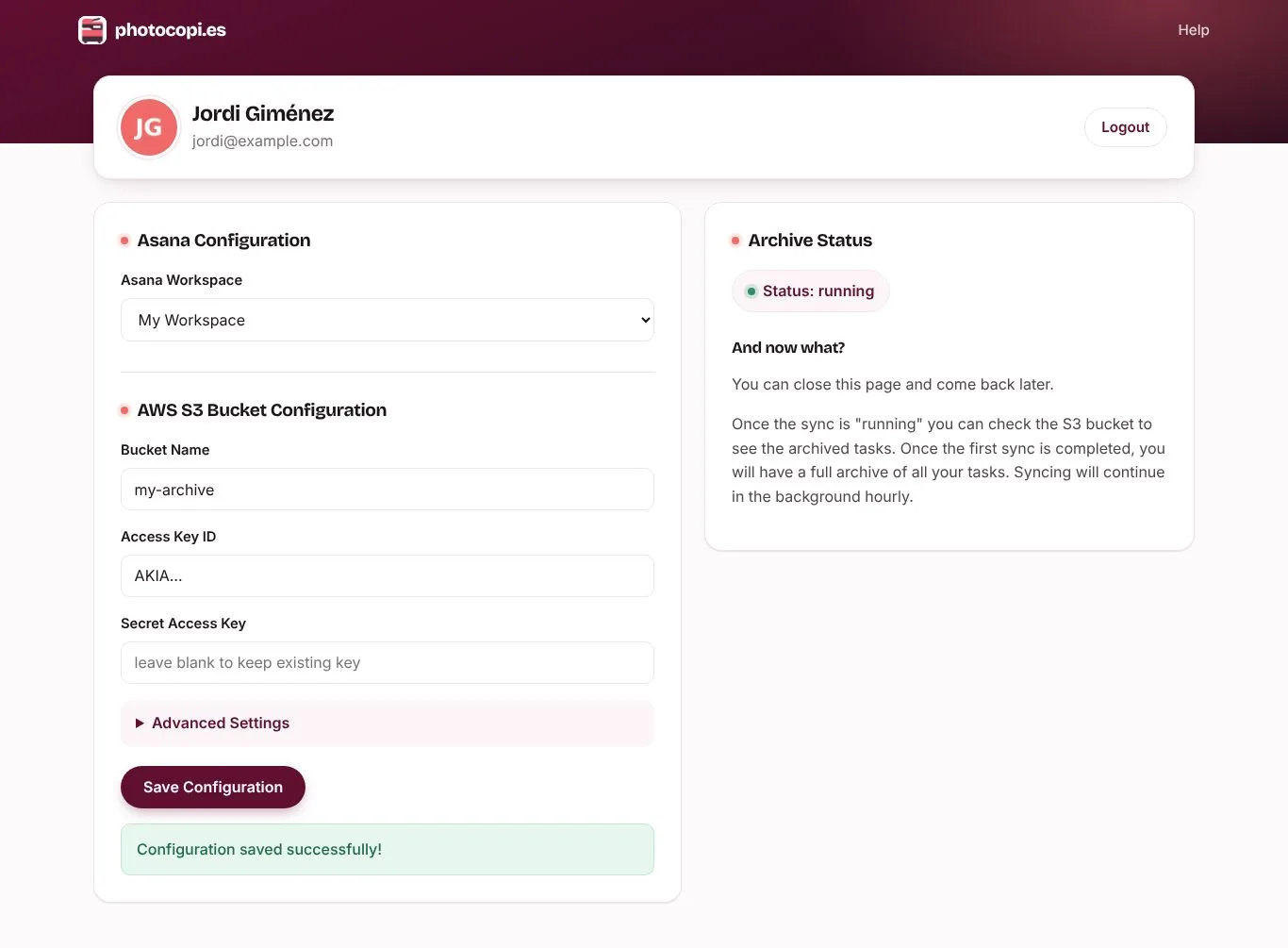
Sign in at app.photocopi.es, pick the Asana workspace, and fill in:
- Bucket name: the name only, not a URL.
- Access key ID and secret access key: the dedicated key from step 2. Credentials are encrypted at rest and in transit.
Under Advanced Settings there are three optional fields:
- Region: auto-detected if left empty. Fill it in if you limited the key to the two object actions, or if you use a provider that expects a specific value.
- Custom endpoint URL: leave empty for Amazon S3. For an S3-compatible provider, enter the endpoint from its documentation.
- Force path-style addressing: needed by some S3-compatible services. Amazon S3 supports two URL styles: virtual-hosted style puts the bucket name in the host name, and path-style puts it in the path. AWS recommends virtual-hosted style and has said path-style will be discontinued in the future, so leave this off for Amazon S3 unless you have a specific reason. Turn it on only if your provider's documentation asks for it.
Save the configuration. Once the status shows the sync is running, objects start to appear in the bucket.
Using an S3-compatible provider
Any storage service that speaks the S3 API can work, including object storage you run yourself. Two examples that document an S3-compatible API on their own sites are Backblaze B2 and Cloudflare R2. Each provider has its own endpoint format, its own way of creating access keys, and its own list of supported S3 features, so check:
- The endpoint URL to enter in the dashboard.
- Which region value it expects. Cloudflare R2, for example, documents a region of
auto. - Whether it needs path-style addressing.
- How to scope a key to one bucket with write and read access only.
- Whether it supports versioning or lifecycle rules, if you plan to rely on them.
Retention: versioning and lifecycle rules
photocopi.es does not decide how long archives are kept. Retention and deletion are controlled by your bucket settings. On Amazon S3, three features are useful:
Versioning
S3 Versioning keeps multiple versions of an object in the same bucket. When an object is written again under the same name, the earlier copy is kept as a noncurrent version instead of being replaced, which protects you from accidental overwrites and deletions.
Lifecycle rules
With versioning on, versions pile up and so does your storage bill. An S3 Lifecycle rule can expire noncurrent versions a set number of days after they become noncurrent, and can keep a set number of the newest noncurrent versions (from 1 to 100). Both conditions must be exceeded before S3 deletes a version. The noncurrent-version action does not touch current versions. If you add rules that expire current objects, think about your record-keeping needs first, and leave sync.json out of them.
Object Lock
If you need write-once-read-many storage, S3 Object Lock can prevent object versions from being deleted or overwritten for a retention period. It works only with versioning on, and once enabled on a bucket it cannot be disabled. Plan it carefully. For what your organization actually has to keep, and for how long, check with your legal or compliance team; Keeping Asana records for audits and compliance covers the wider question.
Archive Asana into your own bucket
Connect your workspace and bucket, and photocopi.es keeps a PDF of every task in your storage with an hourly sync. The Solo and Team plans include a 14-day free trial, no credit card required.
Start your 14-day free trialSources
- General purpose bucket naming rules, Amazon Web Services, checked 11 October 2026.
- Creating a general purpose bucket, Amazon Web Services, checked 11 October 2026.
- Blocking public access to your Amazon S3 storage, Amazon Web Services, checked 11 October 2026.
- Default encryption FAQ, Amazon Web Services, checked 11 October 2026.
- Identity-based policy examples for Amazon S3, Amazon Web Services, checked 11 October 2026.
- Manage access keys for IAM users, Amazon Web Services, checked 11 October 2026.
- SEC02-BP05 Audit and rotate credentials periodically, AWS Well-Architected Framework, checked 11 October 2026.
- Security Hub CSPM controls for AWS Identity and Access Management, Amazon Web Services, checked 11 October 2026.
- Virtual hosting of general purpose buckets, Amazon Web Services, checked 11 October 2026.
- Retaining multiple versions of objects with S3 Versioning, Amazon Web Services, checked 11 October 2026.
- Lifecycle configuration elements, Amazon Web Services, checked 11 October 2026.
- Locking objects with Object Lock, Amazon Web Services, checked 11 October 2026.
- S3-Compatible API, Backblaze, checked 11 October 2026.
- API and S3, Cloudflare R2 docs, checked 11 October 2026.