Ways to back up Asana compared
Built-in exports, your own API script, automation platforms and dedicated backup services each keep different parts of your Asana data. Here is what each one does well, where it falls short, and how to choose.
There are four main ways to back up Asana: the exports built into Asana, a script you write against the Asana API, an integration or automation platform, and a dedicated backup service such as photocopi.es. They differ most in three things: how much of each task they keep (comments and files, not just fields), whether they run on their own, and whether they can put data back into Asana. If restoring into Asana is your priority, you need a backup service built for restore. If you need a readable, lasting record, an archive is usually the better fit.
At a glance
| Approach | What you keep | Runs automatically | Restore into Asana | Effort |
|---|---|---|---|---|
| Built-in project export (CSV or JSON) | Task fields for one project at a time; CSV leaves out comments and attachments | No, you export by hand | Partly: Asana can import CSV files, not every detail comes back | Low per export, high to repeat |
| Organization export (admins, top-tier plans) | A JSON export of the organization's data | No, an admin requests it | No direct import path | Low, if your plan has it |
| Your own script on the Asana API | Whatever you code: tasks, comments, attachments | Yes, if you schedule and maintain it | Only what you build | High: code, tokens, rate limits, upkeep |
| Integration or automation platform | Selected fields copied when a trigger fires | Yes, going forward | No | Medium: one workflow per destination |
| Dedicated backup service with restore | Depends on the vendor | Yes | Yes, for vendors that offer it | Low after setup |
| photocopi.es (PDF archive) | One PDF per task with comments, activity and details, plus downloadable attachments, in your own S3 bucket | Yes, hourly on Solo and Team plans | No | Low: sign in, pick a workspace, add a bucket |
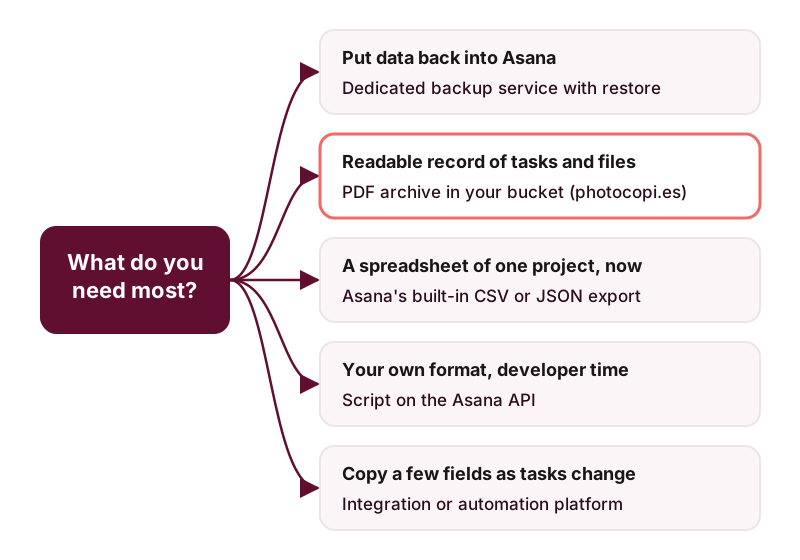
1. Asana's built-in exports
Asana's help center describes exporting a project as a CSV or JSON file from the project's menu. This is free with your Asana account and quick for a single project. The trade-offs are that it is manual, works project by project, and the CSV format is limited: Asana's help center notes that CSV exports do not include comments, attachments or images. JSON keeps more structure but is meant for machines, not for people reading it later.
Asana can import CSV files, but an Asana staff answer on the community forum said JSON exports cannot be imported back. So treat these exports as a copy of your data, not as a way to roll a project back.
On Asana's top-tier plans, super admins can request an export of the whole organization as JSON. Asana lists this for Enterprise+ (and Legacy Enterprise). It is the most complete option Asana offers, but it is still a one-time file that someone has to request, store and make sense of.
Also keep in mind what Asana's own safety net covers: deleted tasks and projects can be restored from Asana's deleted items for 30 days. After that, or after a permanent delete, Asana says they cannot be recovered, including by Asana support.
Best for: a one-off spreadsheet of a project, or a quick copy before a big change. If you want the export as a document instead, see how to export Asana tasks to PDF.
2. Your own script on the Asana API
The Asana API gives developers access to tasks, their stories (comments and activity) and their attachments, so a script can save far more than the CSV export. Asana's developer docs describe the pieces you will need to handle:
- Authentication: a personal access token for your own use, or OAuth for an app other people sign in to.
- Rate limits: requests are limited per token. When you go over, the API answers with HTTP 429 and a Retry-After header, so your script must wait and retry.
- Attachments: download links from the API expire after a short time, so the script has to fetch a fresh link right before downloading each file. Some attachments, such as files hosted on other services, may have no download link at all.
- Pagination and change tracking: large projects come back in pages, and a sensible backup only fetches what changed since the last run.
Then you still need to schedule it, store the results safely, watch for failures and update the code when the API changes.
Best for: teams with developer time who need a custom format or want the data in their own systems.
3. Integration and automation platforms
General automation platforms connect Asana to other apps with triggers and actions. One common pattern, offered as a ready-made template on at least one major platform, adds a spreadsheet row when a new task is added to an Asana project. This is handy for keeping a running log, but it is not a full backup: it copies the fields you map, from the moment you set it up, and it does not bring back history, comments or files unless you build that in step by step.
Best for: lightweight reporting or a log of new and completed tasks.
4. Dedicated backup services
Dedicated services connect to your Asana account and run on a schedule with no code. The key question is what you want at the end: data you can put back into Asana, or a record you can read and keep.
Services built around restore
Several vendors offer Asana backup with restore back into Asana. For example, ProBackup is listed in Asana's app directory and describes daily backups with restore to Asana; Rewind describes automatic daily Asana backups with restore of projects and tasks; and HYCU describes Asana backup and granular recovery, with backups kept in storage you choose. Each vendor sets its own coverage, retention and pricing, so check their pages directly.
photocopi.es: a readable archive in your own bucket
photocopi.es takes the archive approach. You sign in with Asana, pick one workspace, and each task is exported to its own PDF with the title, the formatted description, comments and activity, attachments (listed, with image thumbnails) and task details such as assignee, due date, projects, tags and custom fields. Attachments that Asana can download are saved as separate files next to the PDF. You can open an example archived task PDF to see the result.
The files go to your own Amazon S3 bucket or any S3-compatible storage, not to photocopi.es servers, and your bucket's settings control how long they are kept. On the Solo and Team plans, the first sync archives everything and then checks for changes every hour. There is also a one-off archive, delivered by email, that needs no bucket. See backing up Asana to S3 and pricing for details.
Where photocopi.es is not the best fit
- You need to restore into Asana. photocopi.es cannot put data back into Asana. Choose a service built for restore.
- You need views and conversations. Project lists, board views, calendars and messages (conversations and status updates) are not archived.
- You want to analyze data in a spreadsheet. PDFs are made for reading, sharing and keeping. A CSV export or an API script suits number crunching better.
- You do not want to manage storage. Continuous plans write to a bucket you own. If that is a hurdle, the one-off archive avoids it, but it is not continuous.
Best for: a lasting, human-readable record you control, for example for audits and compliance or before deleting a workspace or cancelling.
How to choose
- Decide on restore first. If a mistake in Asana would need to be undone inside Asana, shortlist services with restore and test it.
- List what must be kept. Fields only, or comments, history and files too? CSV exports and simple automations miss the latter.
- Decide where the copy lives and for how long. Some teams need the data in storage they own, with their own retention rules.
- Be honest about upkeep. Manual exports and scripts only protect you if someone keeps running and checking them.
Many teams combine two: a restore-focused service for day-to-day mistakes and an archive for the long-term record. For a step-by-step overview, read how to back up Asana.
Keep a readable archive of every Asana task
photocopi.es saves each task as a PDF with its comments, activity and attachments in your own S3 bucket, and keeps it up to date every hour.
Start your 14-day free trialSources
- How to import & export projects in Asana, Asana Help Center, checked 11 October 2026.
- What about personal projects in Asana: how it works, Asana Help Center, checked 11 October 2026.
- Import Projects in JSON from Asana JSON Exports, Asana Community Forum (Asana staff reply), checked 11 October 2026.
- Manage Asana organization settings, Asana Help Center, checked 11 October 2026.
- Asana privacy & security: protect your data, Asana, checked 11 October 2026.
- Recover deleted tasks, projects & more in Asana, Asana Help Center, checked 11 October 2026.
- Rate limits, Asana Developers, checked 11 October 2026.
- OAuth, Asana Developers, checked 11 October 2026.
- Attachments, Asana Developers, checked 11 October 2026.
- Get a story, Asana Developers, checked 11 October 2026.
- Pagination, Asana Developers, checked 11 October 2026.
- Create Google Sheet row(s) for new tasks in Asana projects, Zapier, checked 11 October 2026.
- ProBackup + Asana, Asana app directory, checked 11 October 2026.
- Asana Backup & Restore, ProBackup, checked 11 October 2026.
- Asana Backup and Restore, Rewind, checked 11 October 2026.
- Reliable Backup and Recovery for Asana, HYCU, checked 11 October 2026.