How to export Asana tasks to PDF
You can print a project or a task from Asana and choose “Save as PDF” in your browser’s print dialog. That works for a quick copy. For a lasting record of many tasks, with comments and attachments, you need something more.
If you need a PDF of one Asana task, the fastest route is Asana’s own print option plus your browser’s “Save as PDF”. If you need PDFs of many tasks, or a copy that keeps every comment and file for the long term, Asana’s built-in options start to fall short. This article walks through what Asana offers, where it stops, and how photocopi.es turns each task into its own PDF automatically.
What Asana offers out of the box
Print a project, then save it as PDF
Asana’s help center describes an Export/Print option in the drop-down menu next to a project’s name. The printout follows the current view of the project, so if you want only some tasks, filter or sort the view and save it before printing. Asana notes that you can use this print option to save a project as a PDF, since most browsers offer “Save as PDF” in the print dialog.
Asana’s help center also says printing is not supported on some project tabs: overview, timeline, workflow, dashboard and Gantt. Print from a list or board view instead.
Print a single task
Each task has an actions menu (the three-dot icon in the task details pane), and Asana’s help center on task actions lists printing among those actions. Again, your browser’s print dialog is what turns it into a PDF file. You do this one task at a time.
Export a project to CSV or JSON
From the same Export/Print menu, Asana lets you export a project as a CSV or JSON file. Its help center says you can also export from a search view and from My Tasks. These files are useful for spreadsheets and scripts, but they are data files, not readable PDFs. We could not find an Asana help page that says these exports include each task’s comments or attached files, so open a test export and check before you rely on it as a record.
Organization export and the API
For whole-organization exports, Asana’s help center describes a domain export that super admins can run from the admin console, as text only or as text and attachments. Asana says it is available on the Enterprise+ tier and on Legacy Enterprise. Asana’s developer documentation also has an organization export endpoint for service accounts of Enterprise+ organizations.
Developers can also read tasks through the Asana API: there are endpoints for a task’s stories (comments and activity) and for its attachments. Asana’s documentation notes that an attachment’s download link may only be valid for a short time, so it should be fetched when needed. Turning that data into PDFs is up to whatever code you write.
Why a print-to-PDF is a weak long-term record
Printing works for a one-off handout. As an archive it has gaps you should know about:
- It is manual. You print one project view or one task at a time, and you have to remember to do it again after things change.
- It is a snapshot. Comments added next week will not be in the PDF you made today.
- Files stay behind. A PDF of a page does not give you the attached files themselves, and it depends on what the print layout shows.
- Deleted work does not wait. Asana’s help center says deleted tasks can be recovered for up to 30 days, and that permanently deleted items cannot be restored. If a task is gone before you printed it, there is nothing to print.
- Exports are not documents. CSV and JSON files are good for analysis, but they are hard to hand to an auditor, a client or a future colleague as-is.
If you are keeping records for an audit or a handover, see Keeping Asana records for audits and compliance and Handing over Asana project history to a client or regulator.
How photocopi.es turns each task into a PDF
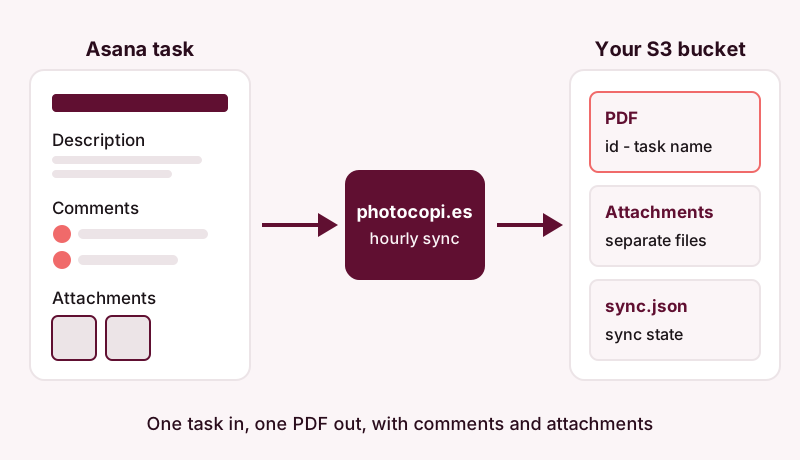
photocopi.es connects to Asana with “Sign in with Asana” and backs up one workspace that you choose. It exports each task to its own PDF and saves it to your own Amazon S3 bucket or any S3-compatible storage. Archives are not stored on photocopi.es servers.
What each PDF contains
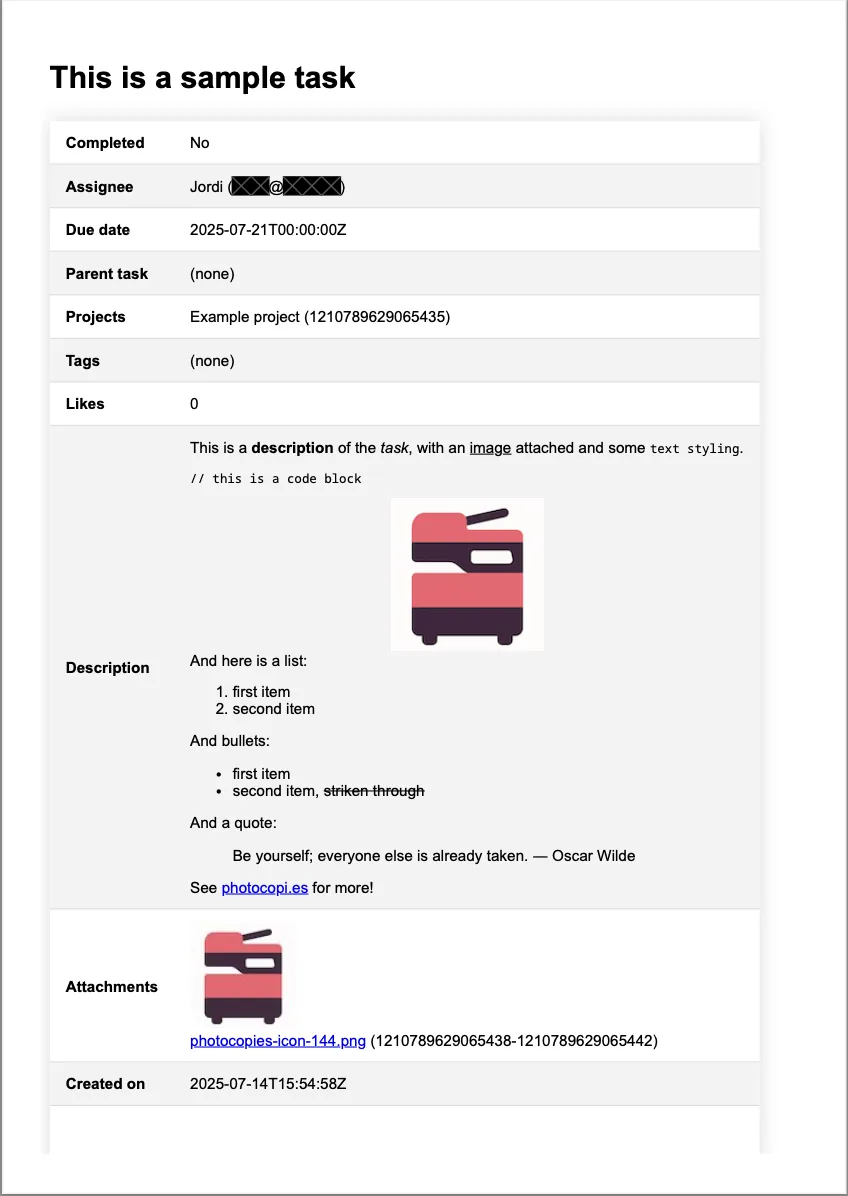
- The task title and its rich description, including formatting, lists, code blocks and inline images.
- Comments and activity (what Asana calls “stories”).
- File attachments, listed, with thumbnails for images.
- Task details: assignee, due date, completed status, created date, projects, tags, parent task, followers, custom fields and likes count.
Attachments and file names
Attachments that Asana can download are saved as separate files next to the PDF. Attachments without a download link, such as files linked from external services, are recorded by name only. Files are written at the root of your bucket with predictable names:
<task id> - <task name>.pdffor each task<task id>-<attachment id> - <attachment name>for each attachmentsync.json, a state file the service uses to track syncing
How long the files are kept, and when they are deleted, is controlled by your own bucket settings. For setup details, see Back up Asana to Amazon S3 or S3-compatible storage.
Staying up to date
On the continuous plans, the first sync archives everything, and then photocopi.es checks Asana for changes every hour, so you do not have to remember to print anything again. If you only need a single snapshot, the one-off archive is delivered by email within 24 hours and does not need an S3 bucket. Plan details are on the pricing section.
Limits to know before you start
- photocopi.es cannot restore data back into Asana. The PDFs are a record to read, not an import file.
- It archives tasks. Project lists, board views, calendars and messages (conversations and status updates) are not archived.
- You pick one Asana workspace to back up.
To compare this with other approaches, read Ways to back up Asana compared.
Get a PDF of every Asana task, automatically
Connect your workspace and photocopi.es saves each task as a PDF, with comments and attachments, in your own S3 bucket. No credit card needed for the trial.
Start your 14-day free trialSources
- How to import & export projects in Asana, Asana Help Center, checked 11 October 2026.
- Understanding projects in Asana, Asana Help Center, checked 11 October 2026.
- Asana task actions: edit, move & manage tasks, Asana Help Center, checked 11 October 2026.
- Manage Asana organization settings, Asana Help Center, checked 11 October 2026.
- Recover deleted tasks, projects & more in Asana, Asana Help Center, checked 11 October 2026.
- Organization exports, Asana Developers, checked 11 October 2026.
- Get stories from a task, Asana Developers, checked 11 October 2026.
- Attachments, Asana Developers, checked 11 October 2026.