Handing over Asana project history to a client or regulator
How to give a client or regulator a complete project record they can keep and read without Asana, and what to put in the package.
When an engagement ends, the client or a regulator usually wants the project record in a form they can keep and read without your Asana account. You have three realistic options: keep them in Asana as guests, give them Asana's own CSV, JSON or printed exports, or hand over a document archive with one PDF per task and its attachments. For a complete, readable record, a per-task PDF archive plus a short cover note, index and scope note works best, and the sections below explain why and how to put it together.
What the recipient actually needs
A handoff is different from a backup. A backup is for you, in case something goes wrong. A handoff package is for someone outside your team who did not live through the project and may open it months or years later. That changes the requirements:
- Readable without Asana. The recipient may not have an Asana account, or may lose access when the engagement ends.
- Complete per item. Each piece of work should show what was asked, what was decided and what was delivered, including the comment thread and the files.
- Scoped. It should contain this client's work and nothing from other clients or internal-only projects.
- Honest about gaps. If something is not included, the package should say so rather than leave the reader guessing.
Your options inside Asana
Keep the client as a guest
Asana's help center describes guests as people whose email address is not on your organization's domain, such as clients and contractors. What a guest sees depends on what you share: share a single task and they see only that task, share a project and they see the project and its tasks. Asana also documents that admins can remove members and guests from an organization.
Guest access is useful while the work is live. As a handoff it has a weakness: it is access, not a copy. The record stays in your workspace, under your control, and disappears for the client once you remove them or clean up the project. Most clients and auditors will want something they hold themselves.
Export the project as CSV or JSON
Asana's help center explains that you can export a project to the text-based JSON or CSV formats from the Export/Print option in the project's drop-down menu. A CSV is handy as an index, because it lists tasks in rows that the recipient can sort and filter in a spreadsheet. It is a flat table, though, so it is not a comfortable way to read a long comment thread. Before relying on either file as the record, open it and check that the details your recipient needs are actually in it.
Print the project to PDF
The same menu has a print option, and Asana notes that you can use your browser's "Save as PDF" in the print dialog to keep the project as a PDF. Asana also says the printout follows the current view, so you can save a filtered or sorted view first, and that printing is not supported on some project tabs, such as overview, timeline and dashboard. A printed project view is a good one-page summary. It is not a substitute for each task's full conversation and files.
For a fuller comparison of these routes, see How to export Asana tasks to PDF and Ways to back up Asana compared.
What a good handoff package contains
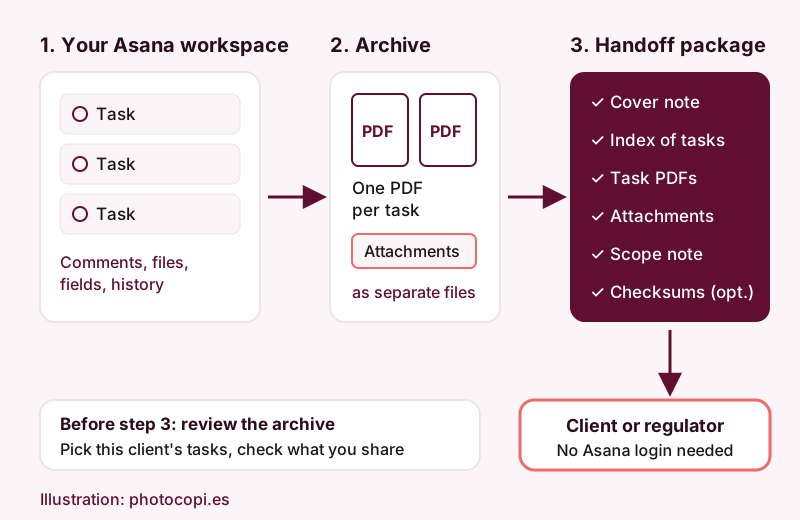
Whatever tools you use, aim for a folder that a stranger could understand in ten minutes:
- A cover note. Who the client is, the engagement dates, who prepared the package and when, and who to contact with questions.
- An index of tasks. A simple list or spreadsheet of task names and their file names. Asana's CSV export can serve as a starting point.
- One document per task. Title, description, assignee, dates, status, custom fields and the full comment history, in a format anyone can open.
- The attachments. The actual files, not just links that will stop working when access ends.
- A scope note. What is included, what is not (for example board layouts, timelines or team messages) and the date the record was taken.
- Optional integrity details. If a regulator is involved, ask what they expect. Some teams add file checksums or a signed delivery receipt. Check the requirements with your legal or compliance team rather than guessing.
If the package is for an audit, Keeping Asana records for audits and compliance covers the record-keeping side in more detail.
Where a photocopi.es archive fits
photocopi.es produces items 3 and 4 of that list. You sign in with Asana, pick one workspace, and each task is exported to its own PDF. Each PDF contains the task title, the rich description (formatting, lists, code blocks, inline images), comments and activity, the list of attachments with image thumbnails, and task details: assignee, due date, completed status, created date, projects, tags, parent task, followers, custom fields and likes count.
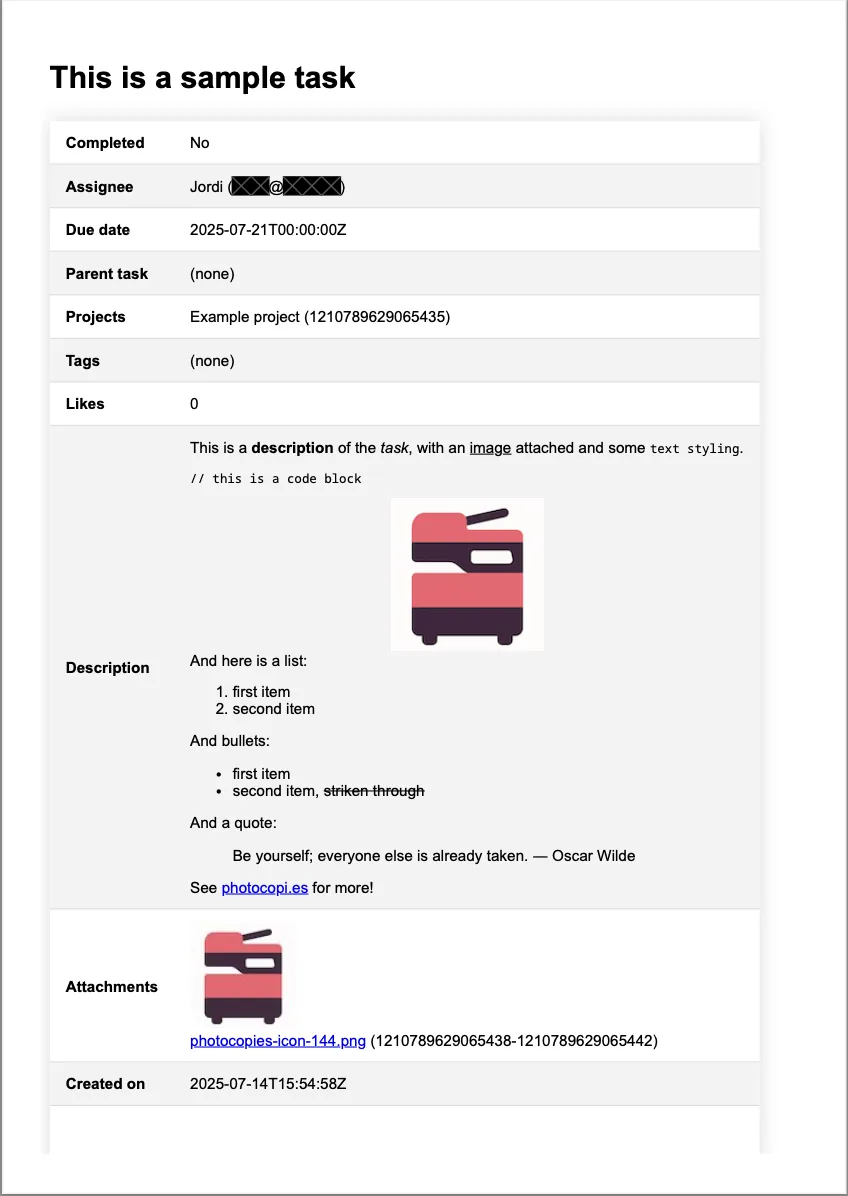
Attachments that Asana can download are saved as separate files next to the PDF. Attachments without a download URL, such as files linked from external services, are recorded by name only, so if the client needs those, collect them from the service they live in. Files are named <task id> - <task name>.pdf and <task id>-<attachment id> - <attachment name>, which keeps each attachment easy to match to its task.
The One-off archive for end-of-engagement handoffs
Most handoffs happen once, at the end of a project, so you may not need an ongoing subscription. The One-off archive costs 49 EUR per archive (one-time payment, VAT exclusive), needs no S3 bucket, and is delivered by email within 24 hours. That makes it a practical way to take a snapshot on the day the engagement closes. See pricing for the current details.
Continuous archiving during the engagement
If you run long engagements or are required to keep records as you go, the Solo and Team plans archive continuously to your own Amazon S3 bucket or any S3-compatible storage. The first sync archives everything, and then it checks for changes every hour. Archives are written to your bucket, not stored on photocopi.es servers, and how long they are kept is controlled by your bucket's settings. Both plans have a 14-day free trial with no credit card required. Back up Asana to Amazon S3 or S3-compatible storage explains the setup.
Assembling the package
The archive covers the workspace you choose, so the bucket or delivery may contain tasks from more than one client. Each task PDF lists the projects it belongs to, which makes it straightforward to pick out this client's tasks. A workable routine:
- Take the archive (One-off, or from your bucket) after the last task is closed.
- Copy the PDFs and attachments for this client's tasks into a new folder.
- Read through a sample of PDFs and remove any task that should not be shared, such as internal pricing discussions.
- Add the cover note, the index and the scope note.
- Deliver the folder through whatever channel your contract specifies, and keep your own copy.
Limits to state in your scope note
Be upfront with the recipient about what an archive like this is and is not:
- photocopi.es archives tasks. Project lists, board views, calendars and messages (conversations and status updates) are not archived. If those matter, add a printed project view or other material separately.
- The archive is a read-only record. Restoring data back into Asana is not possible, so it cannot be used to recreate the project in the client's own Asana.
- Linked files from external services appear by name only.
- The record reflects the date the archive was taken. Note that date in the cover note.
If you are also closing down the workspace itself, read Archive Asana before deleting a workspace or cancelling before you remove anything.
Prepare your next handoff
Archive each Asana task as a PDF with its attachments, in your own S3 bucket. For a single end-of-project snapshot, the One-off archive is delivered by email within 24 hours.
Start your 14-day free trialSources
- Asana guests FAQ: access & permissions, Asana Help Center, checked 11 October 2026.
- Manage members in your Asana organization, Asana Help Center, checked 11 October 2026.
- How to import & export projects in Asana, Asana Help Center, checked 11 October 2026.
- Understanding projects in Asana, Asana Help Center, checked 11 October 2026.
- photocopi.es pricing and FAQ, photocopi.es, checked 11 October 2026.