How to back up Asana
Asana keeps deleted items for 30 days. For anything longer, keep your own copy: manual exports, an API script, or an automatic backup to storage you control.
To back up Asana, you need a copy of your tasks that lives outside Asana and that you control. There are three practical ways to get one: export projects by hand from Asana's project menu, write your own script against the Asana API, or use a backup service that copies your workspace on a schedule. This guide explains why a separate copy is worth having, compares the three options, and walks through an automatic setup with photocopi.es.
Why keep a backup outside Asana
Asana does have a safety net for mistakes, but it is short and it has limits. Here is what Asana's own help center and terms say:
- Deleted items have a 30-day window. Asana's help center says deleted tasks, projects and messages can be recovered for 30 days. After that, they cannot be recovered.
- Permanent deletion is immediate. If someone chooses to delete an item permanently, it is removed right away, and Asana's help center says support cannot restore a permanently deleted task.
- Not everyone can undelete. According to Asana's help center, only the person who created an item and the person who deleted it can see it in the deleted items view.
- Retention policies can remove old work. Organizations on Asana Enterprise+, or on Enterprise with the Compliance Management add-on, can set a data retention policy that deletes inactive data. Asana describes a 30-day window in which admins can restore that data before it is gone for good.
- Data after a subscription ends. Asana's Subscriber Terms say Asana will make customer data available for export if it receives written notice within 30 days after the subscription expires or is terminated. After that, Asana has no obligation to keep the data and may delete it.
None of this means Asana is careless with data. Asana's Data Processing Addendum says it makes regular backups of customer data. Those backups protect Asana's service, though, not your access to a specific task you deleted by mistake last quarter. A backup you own answers a different question: "Can we still read this work if it disappears from Asana, or if we stop paying for Asana?"
If you need records for audits or legal holds, see Keeping Asana records for audits and compliance, and check your specific obligations with your legal or compliance team.
Your options for backing up Asana
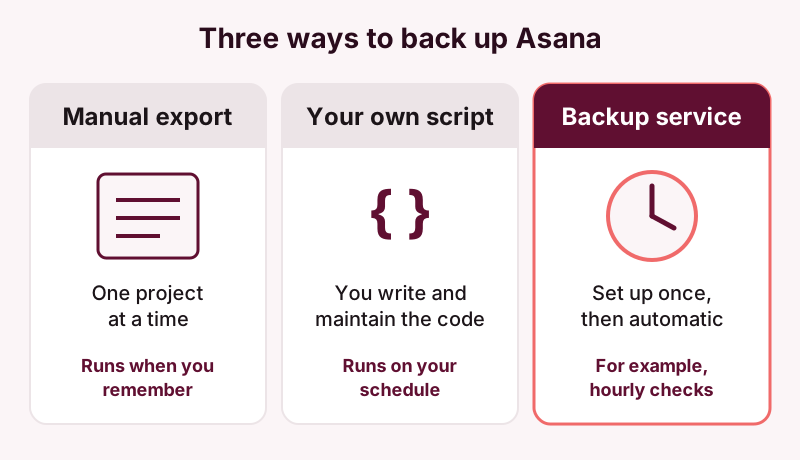
1. Manual exports from Asana
Asana's help center describes an Export/Print option in each project's drop-down menu. From there you can export a project to CSV or JSON, or print it. Printing uses your browser's print dialog, so most browsers let you save the printout as a PDF. Asana notes that printing is not supported on some project tabs, such as timeline and dashboard.
Manual exports cost nothing extra and are fine for a one-time snapshot of a few projects. The drawbacks: you export one project at a time, someone has to remember to do it, and CSV and JSON files are structured data rather than something a person can easily read. If you mostly want readable copies, our guide on how to export Asana tasks to PDF goes into more detail.
Asana also has an organization-wide export for super admins, which produces the organization's data as JSON. Asana's help center limits this domain export to its highest enterprise tiers, so check whether your plan includes it.
2. A script using the Asana API
If you have a developer available, Asana's API lets you read tasks project by project and save them however you like. Asana's developer docs recommend personal access tokens for scripts and simple apps, and OAuth for apps where several people sign in. Keep in mind that:
- The API has rate limits that apply per token, and they are lower on free Asana domains than on paid ones. Requests over the limit are rejected with an HTTP 429 response and a Retry-After header, so a backup script needs to wait and retry.
- Task list endpoints return compact records by default. You request extra properties with the
opt_fieldsparameter. - You own the code: storage, scheduling, error handling, and fixes when something changes.
3. A backup service
A service connects to Asana once and keeps your copy up to date without anyone remembering to export. When you compare services, check where the backup is stored, how often it runs, what it includes, and what it cannot do. For a side-by-side look, see Ways to back up Asana compared.
Set up an automatic Asana backup with photocopi.es
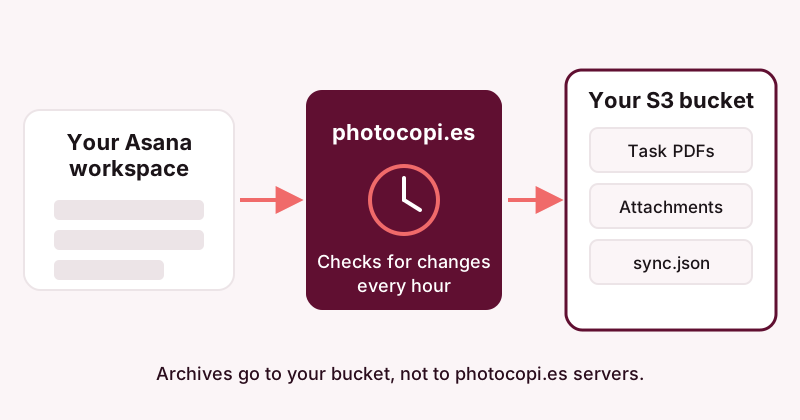
photocopi.es exports each Asana task to its own PDF and saves it in your own Amazon S3 bucket or any S3-compatible storage. Each PDF contains the task title, the rich description, comments and activity, a list of attachments with image thumbnails, and task details such as assignee, due date, completion status, projects, tags, followers and custom fields. You can open an example archived task PDF to see the result.
Before you start
Create an S3 bucket (or a bucket with an S3-compatible provider) and an access key that can write, read and list objects in it. Grant s3:PutObject and s3:GetObject on the bucket's objects, and s3:ListBucket on the bucket. All three are required. Region auto-detection may need permission to look up the bucket's region, or you can enter the region yourself. Our guide to backing up Asana to Amazon S3 or S3-compatible storage covers the bucket side in more depth.
Step by step
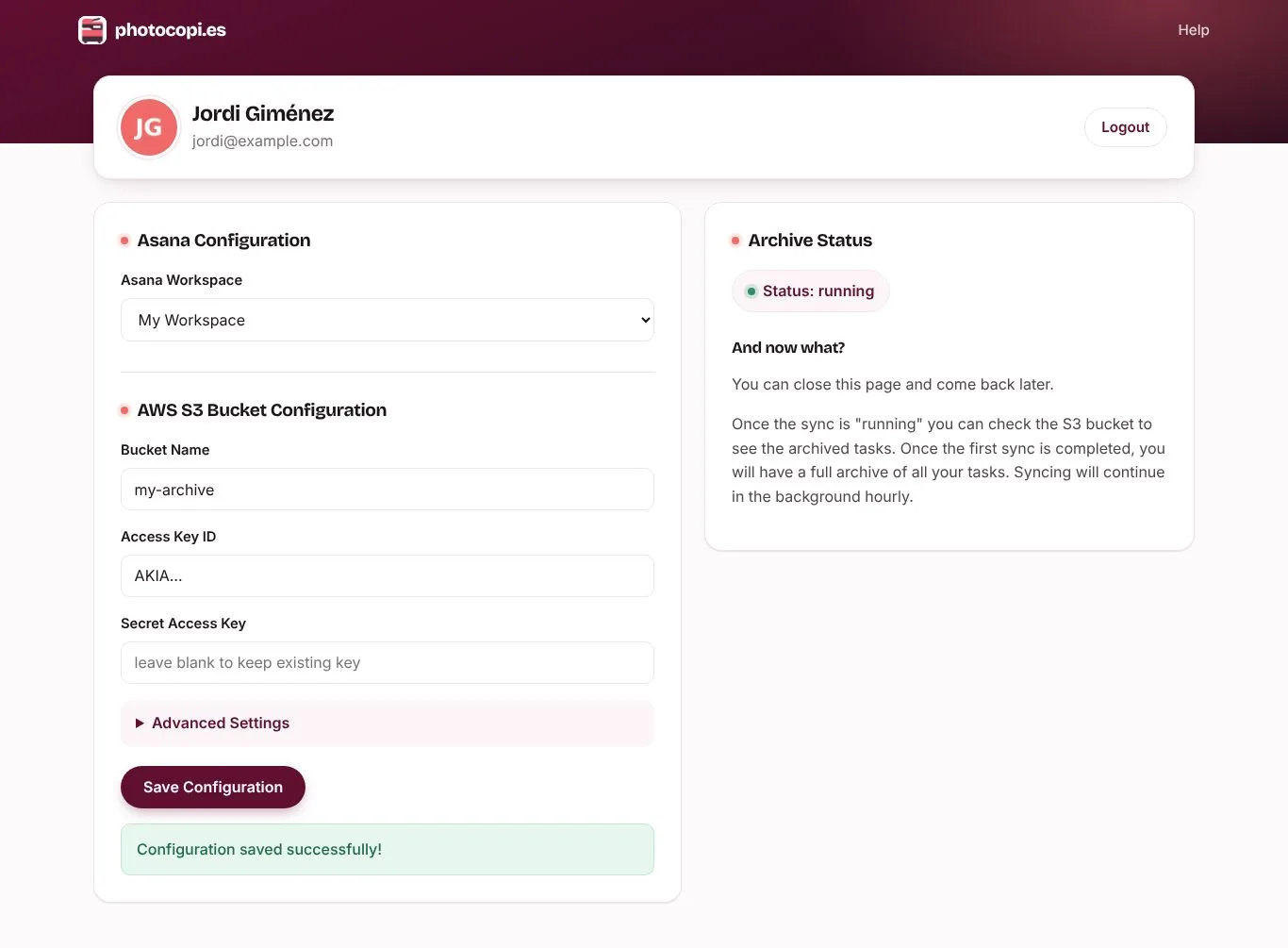
- Sign in. Go to app.photocopi.es and choose "Sign in with Asana". This connects your Asana account through OAuth.
- Pick a workspace. Choose the one Asana workspace you want to back up.
- Enter your S3 bucket. Fill in the bucket name, access key ID and secret access key. Under the advanced settings you can set the region (it is auto-detected if left empty), a custom endpoint URL, and force path-style addressing, which some S3-compatible services need.
- Let the first sync run. The first sync archives everything. After that, photocopi.es checks for changes every hour and updates tasks that changed.
What ends up in your bucket
Files are written at the root of the bucket: one PDF per task named <task id> - <task name>.pdf, attachments saved next to it as <task id>-<attachment id> - <attachment name>, and a sync.json state file. Attachments that Asana cannot download, such as files linked from external services, are recorded by name only. The archives are not stored on photocopi.es servers, and how long you keep them is up to your bucket's own settings.
If you use Amazon S3, two bucket features are worth knowing about. AWS's documentation describes S3 Versioning, which keeps multiple versions of an object in the same bucket, and S3 Lifecycle rules, which can expire objects or older versions after a set number of days. Decide on these with whoever owns your retention policy.
Limits to know about
- photocopi.es is an archive, not a restore tool. It cannot put data back into Asana.
- It archives tasks. Project lists, board views, calendars and messages (conversations and status updates) are not archived.
- Each setup backs up one workspace.
- It archives the tasks in projects that the Asana account you sign in with can see, along with their subtasks. Tasks that are not in any project, and projects that account cannot see, are not archived.
Continuous backup is part of the Solo and Team plans, which both include a 14-day free trial with no credit card required. If you only need a single snapshot, for example before deleting a workspace or cancelling, there is also a one-off archive that is delivered by email and needs no S3 bucket. See pricing for details.
Back up your Asana workspace every hour
photocopi.es saves every task as a PDF in your own S3 bucket and checks for changes every hour. Try it free for 14 days, no credit card required.
Start your 14-day free trialSources
- Recover deleted tasks, projects & more in Asana, Asana Help Center, checked 11 October 2026.
- Asana data retention policy, Asana Help Center, checked 11 October 2026.
- Asana Subscriber Terms, Asana, checked 11 October 2026.
- Data Processing Addendum, Asana, checked 11 October 2026.
- How to import & export projects in Asana, Asana Help Center, checked 11 October 2026.
- Manage Asana organization settings, Asana Help Center, checked 11 October 2026.
- Personal access token, Asana Developers, checked 11 October 2026.
- Rate limits, Asana Developers, checked 11 October 2026.
- Get tasks from a project, Asana Developers, checked 11 October 2026.
- Retaining multiple versions of objects with S3 Versioning, Amazon Web Services, checked 11 October 2026.
- Lifecycle configuration elements, Amazon Web Services, checked 11 October 2026.